Brief
The final project for PRW-466 Technical Writing at Grand Canyon University: a complete user guide for a reader I chose and researched over the term. The reader is someone who built or upgraded their own Windows PC, has seated RAM and changed BIOS settings, and has never opened a crash dump. Microsoft's first steps have already failed them. The guide had to get them from a recurring stop screen to a diagnosis and a repair with free tools, with every warning where it belongs and every figure legible without the text around it.
Role
Sole author. I chose the audience, researched the sources, wrote the text, drew the cover and the flowchart, and took the screenshots. A classmate's peer review shaped the final draft: the cover, the full-page flowchart and the red warnings came from her notes.
The work
Repeated blue screens on a Windows PC: finding and fixing common causes
A troubleshooting guide for Windows 10 and 11
Who this guide is for
You built or upgraded your own Windows 10 or 11 PC, so you have seated RAM, mounted a graphics card and changed BIOS settings. You have probably never opened a crash dump. Now your PC stops on the same error screen often enough that restarting no longer helps.
This guide assumes you have already tried Microsoft's first steps (installing updates, removing new hardware, System Restore) without success. It skips the hardware you know and teaches crash logs and dump files from the beginning.
The steps run in order; if you already know your stop code, start at Step 3.
Scope
This guide covers stop codes that keep recurring on a PC that still starts Windows, normally or in Safe Mode. It ends at a diagnosis and a repair you can make with free tools.
It stops at three points: a CPU or motherboard that fails at default settings on the latest BIOS (a warranty claim), a PC that switches off with no error screen (usually the power supply), and recovering lost files.
What you need
- An administrator account on the crashing PC
- A stable internet connection
- An empty USB drive
- A notepad or text editor
How long it takes
| Step | Time |
|---|---|
| 1. Record the stop code | 10 minutes |
| 2. Make sure Windows saves a dump | 5 minutes, then wait for the next crash |
| 3. Read the dump | 30 minutes |
| 4. Repair (one branch) | 15 minutes to overnight |
| 5. Confirm the fix | Twice your longest crash-free gap |
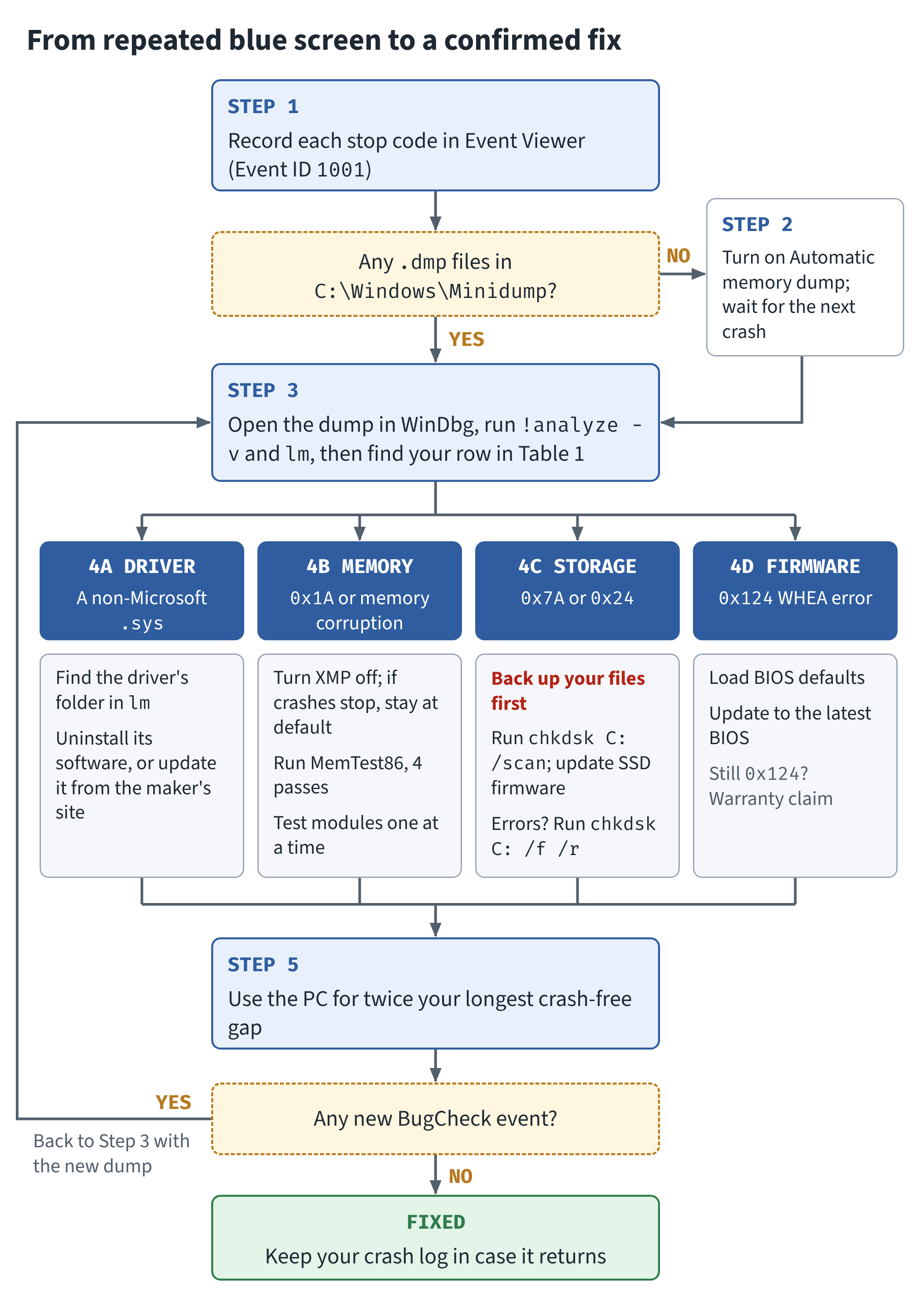
Figure 2 maps the whole route.
Step 1: Record the stop code
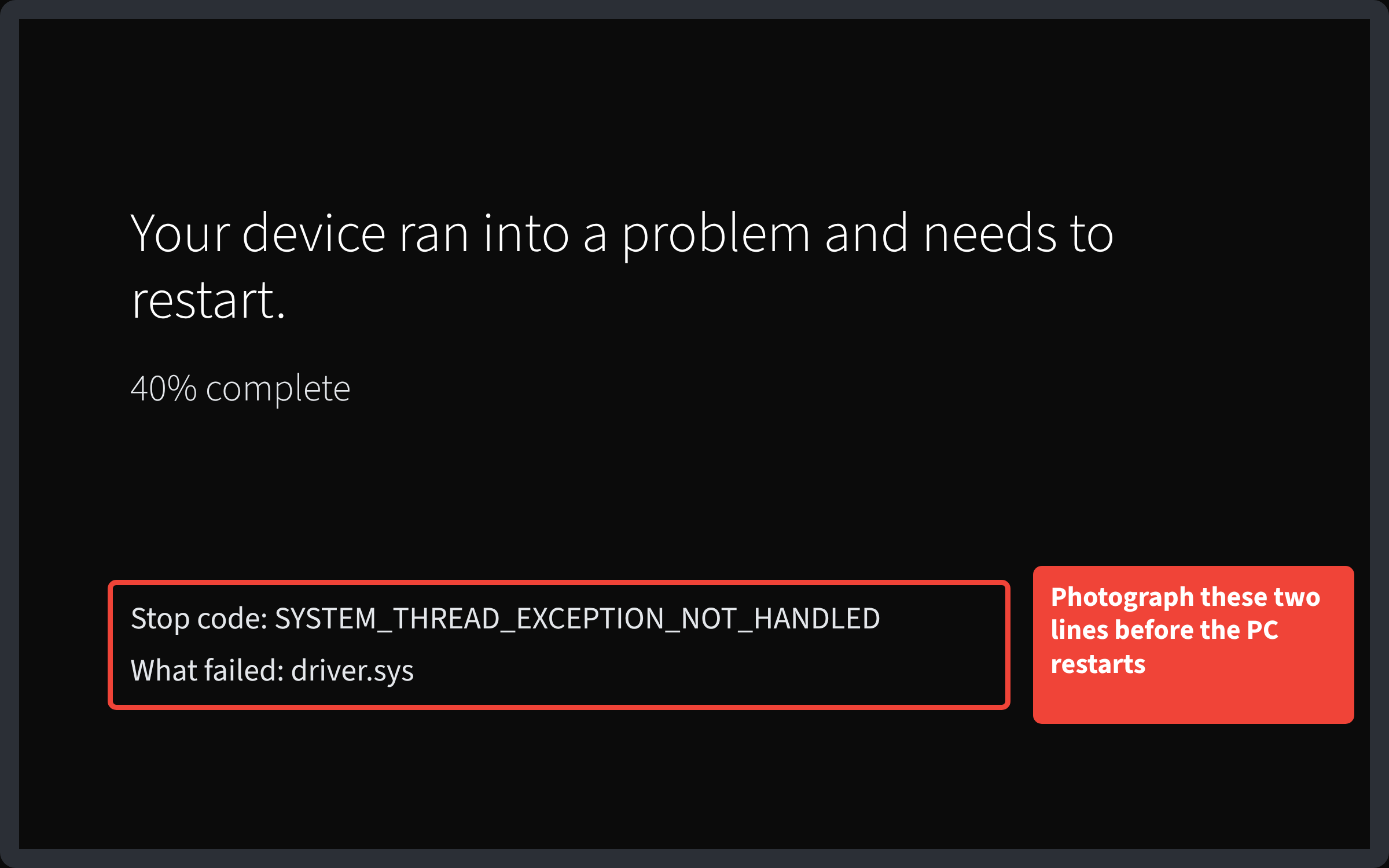
If you catch the stop screen, photograph its bottom two lines (Figure 1) as a backup.
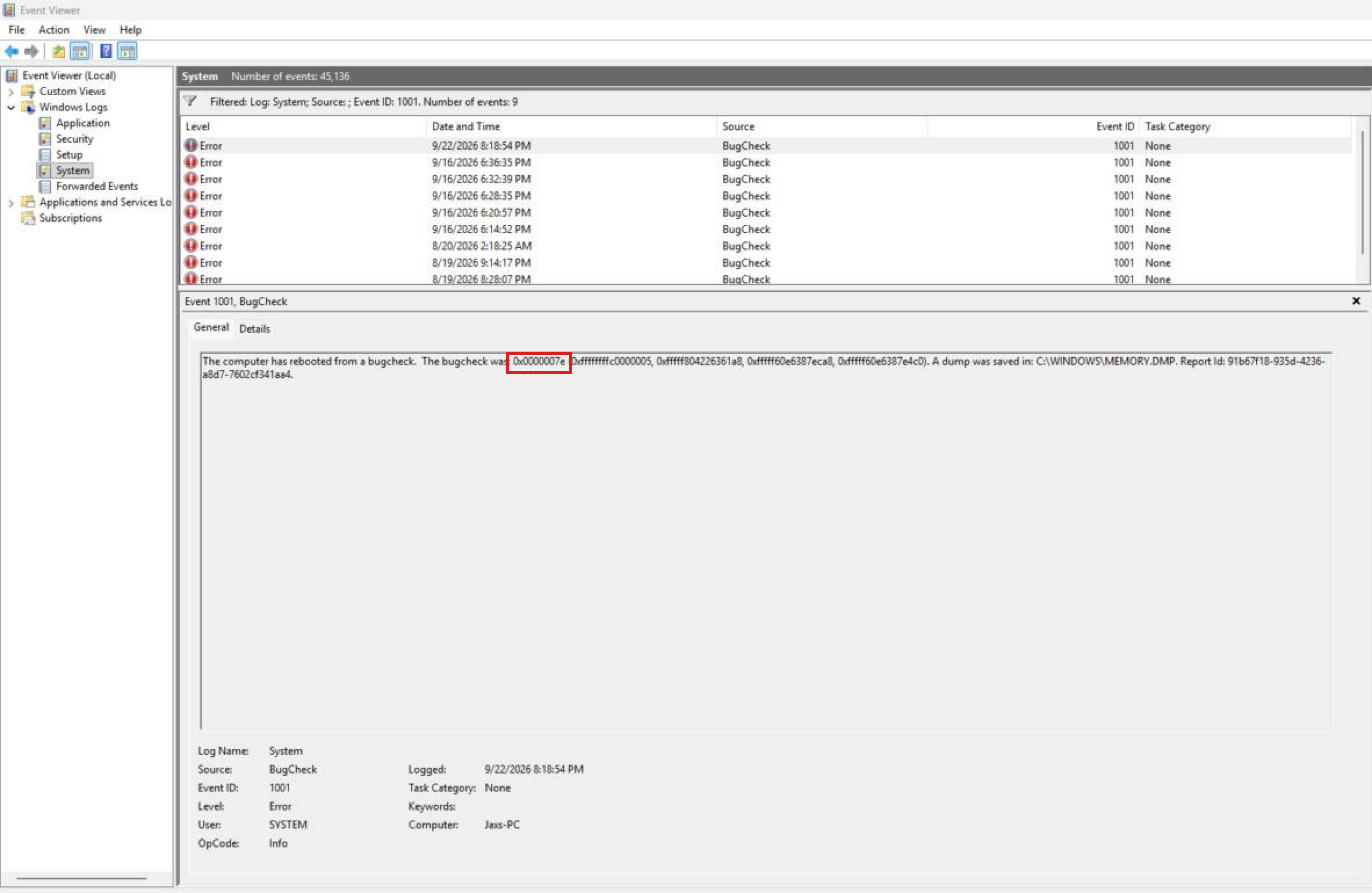
- Press Windows + R, type
eventvwr.mscand press Enter. - In the left pane, open Windows Logs > System.
- In the right pane, select Filter Current Log.
- Type
1001in the Event IDs box and select OK. - Open each event whose source is BugCheck. The stop code follows "The bugcheck was:", for example
0x0000007e. - Write down each code with its date and time.
If the log shows no BugCheck events, see Troubleshooting.
Step 2: Make sure Windows saves a dump
- Open File Explorer and go to
C:\Windows\Minidump. If it holds.dmpfiles dated to your crashes, skip to Step 3. - If the folder is empty or missing, type Advanced system settings in the taskbar search box and press Enter.
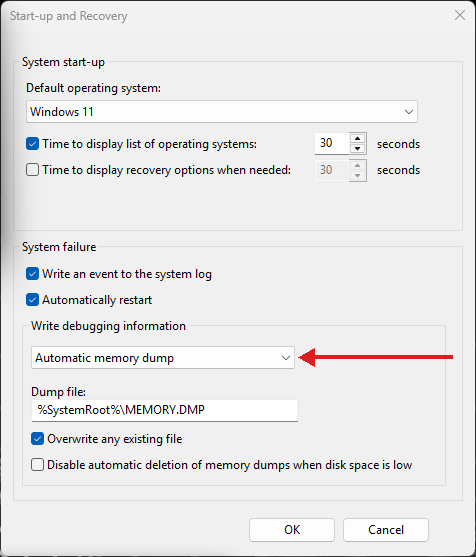
- On the Advanced tab, under Startup and Recovery, select Settings.
- Under Write debugging information, choose Automatic memory dump.
- Select OK and restart.
- Use the PC normally until it crashes again.
Step 3: Read the dump
- Right-click Start, select Terminal (Admin), type
winget install Microsoft.WinDbgand press Enter. - Right-click WinDbg in the Start menu and select Run as administrator.
- Select File > Start debugging > Open dump file and open the newest file in
C:\Windows\Minidump. - Wait until the command box at the bottom accepts input. The first dump takes several minutes while symbols download.
- Type
!analyze -vand press Enter. - Scroll to the end of the output and write down the IMAGE_NAME value.
- Type
lmand press Enter to list every driver that was loaded. Note any path outside\SystemRoot\; those drivers came from other companies.
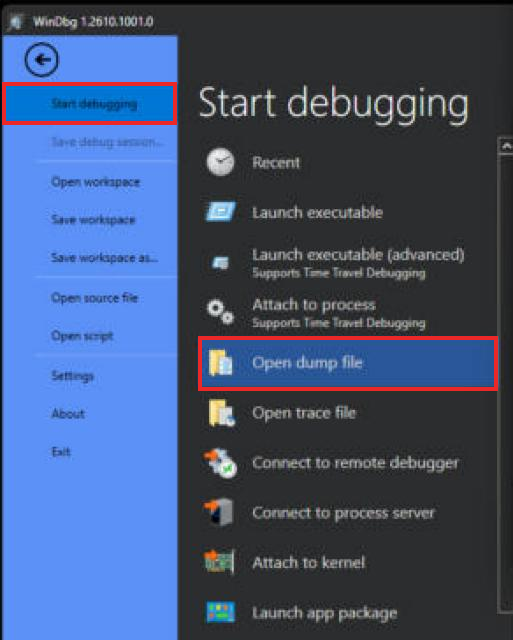
Match what you found to a branch in Table 1, which groups Microsoft's stop codes by cause. When two rows fit, take the driver branch first: Microsoft attributes 70% of stop errors to third-party drivers and 10% to hardware.
Table 1. Where your stop code points
| What you see | Go to |
|---|---|
IMAGE_NAME is a .sys file from another company |
4A Driver |
0x1A MEMORY_MANAGEMENT, or IMAGE_NAME memory_corruption |
4B Memory |
0x7A KERNEL_DATA_INPAGE_ERROR or 0x24 NTFS_FILE_SYSTEM |
4C Storage |
0x124 WHEA_UNCORRECTABLE_ERROR |
4D Firmware |
0x50 PAGE_FAULT_IN_NONPAGED_AREA |
4A, then 4C |
| A different code on almost every crash | 4B, then 4D |
Step 4A: Driver
- Find the driver's path in the
lmlist. The folder names the software that installed it. - If you don't need that software, uninstall it in Settings > Apps > Installed apps.
- If you need it, download its current version from the maker's own website.
- Go to Step 5.
Worked example. One test machine crashed with
0x7Efive times in 22 minutes, each 3 to 6 minutes after a game launcher opened. The dumps named no driver, butlmshowed one non-Microsoft driver in all five:C:\Program Files\Riot Vanguard\vgk.sys, the game's anti-cheat. Uninstalling the game removed it, and the crashes stopped.
Step 4B: Memory
WARNING: Photograph or note your BIOS memory settings before changing them. MemTest86 erases the USB drive.
- In the BIOS, turn off XMP (or EXPO on AMD boards) and save. If the crashes stop, the memory profile was the cause; stay at default speed.
- If they continue, download MemTest86 Free from memtest86.com and write it to the USB drive.
- Boot from the USB drive and let the default 4 passes run. Expect about 2 hours; with a lot of RAM, run it overnight.
- Treat any error as real, including one that appears only once.
- Remove modules or swap two between slots, testing after each change, until one module fails on its own. Replace it.
Step 4C: Storage
WARNING: Back up your files before step 3. Repairs can lose data stored in damaged areas.
- In Terminal (Admin), run
chkdsk C: /scan. - Install your SSD maker's utility and apply any firmware update.
- If chkdsk reported errors, run
chkdsk C: /f /r, typeYand restart. The repair runs before Windows loads and can take over an hour.
Step 4D: Firmware
WARNING: Never switch off the PC during a BIOS update.
- In the BIOS, load default settings to remove any overclock or undervolt.
- Download the latest BIOS from your motherboard maker's support page and follow its update instructions exactly.
- If
0x124returns at default settings on the latest BIOS, the CPU or motherboard is faulty. Contact the maker about a warranty claim.
Step 5: Confirm the fix
- Find the longest gap between two crashes in your Step 1 log.
- Use the PC normally for twice that long.
- Repeat Step 1. If a new BugCheck event appears, return to Step 3 with the new dump and check whether the code has changed.
Troubleshooting
| Problem | Likely cause | What to do |
|---|---|---|
No .dmp files after a crash |
Dumps turned off, or the page file is off | Repeat Step 2; set the page file to System managed size |
| WinDbg can't load symbols | No internet when the dump opened | Reconnect, type .reload, then run !analyze -v again |
| Event ID 41 (Kernel-Power) with no BugCheck event | The PC lost power without a stop error | Outside this guide: check the power supply and its cables |
| Crash before the desktop appears | A driver that loads at startup | Hold Shift and select Restart > Troubleshoot > Advanced options > Startup Settings > Restart, then press 4 for Safe Mode |
Sources
Microsoft Learn: "Advanced Troubleshooting for Stop Code Errors" (02/12/2026), "Analyze a Kernel-Mode Dump File by Using WinDbg," "Bug Check Code Reference," "Install WinDbg." Microsoft Support: "Troubleshooting Windows Unexpected Restarts and Stop Code Errors." PassMark Software: "MemTest86 - Execution Time," "Troubleshooting Memory Errors." The submitted version carries full MLA citations.
What I'd measure
Whether a reader who starts at Step 1 reaches a branch of Table 1 without asking anyone, and how many stop at Step 3, where WinDbg is the first unfamiliar tool. The guide's own test is Step 5: twice the longest crash-free gap with no new BugCheck event.